
Instalação do Palette
Palette can be installed as usual Drupal module with one line command:
composer require drupal/canvas_paletteA instalação em quatro passos
- Require the code with Composer — pulls in other Drupal modules and all front-end libraries.
- Enable the module — with Drush or on the Extend page.
- Rebuild caches — so Canvas derives the components.
- Open Canvas — and find the components under the Palette category.
Passo 1 — Requira-o com Composer
Na raiz do seu projeto, requisite o Palette. O Composer traz automaticamente o Canvas, Webform e as bibliotecas JavaScript que os componentes interativos usam (Splide, tiny-slider, GLightbox, countUp.js, Coloris e mais):
# O módulo + sua dependência obrigatória, o Drupal Canvas
composer require drupal/canvas drupal/canvas_palette
Em um site novo, o resultado fica assim — o Palette puxa uma stack completa de pacotes de uma só vez:
  - Installing drupal/webform (6.3.0)
  - Installing drupal/canvas (1.10.0)
  - Installing drupal/canvas_palette (1.0.2)
  - Installing levmyshkin/splide, tiny-slider, glightbox,
      count-up.js, coloris, accordion, sticky-js, vidbg …
Generating autoload files
Nenhum aviso de vulnerabilidade de segurança encontrado.levmyshkin/* packages are installed into web/libraries/ by composer/installers. You don't wire them up — each component declares the library it needs, so they load only on pages that use that component.Passo 2 — Habilite o módulo
The fastest way is Drush. Enabling canvas_palette also enables its dependencies (Canvas, Webform, Media, Media Library) in one command:
drush en canvas_palette -y[success] O módulo canvas_palette foi instalado.
[success] O módulo canvas foi instalado.
[success] O módulo media_library foi instalado.
[success] O módulo media foi instalado.
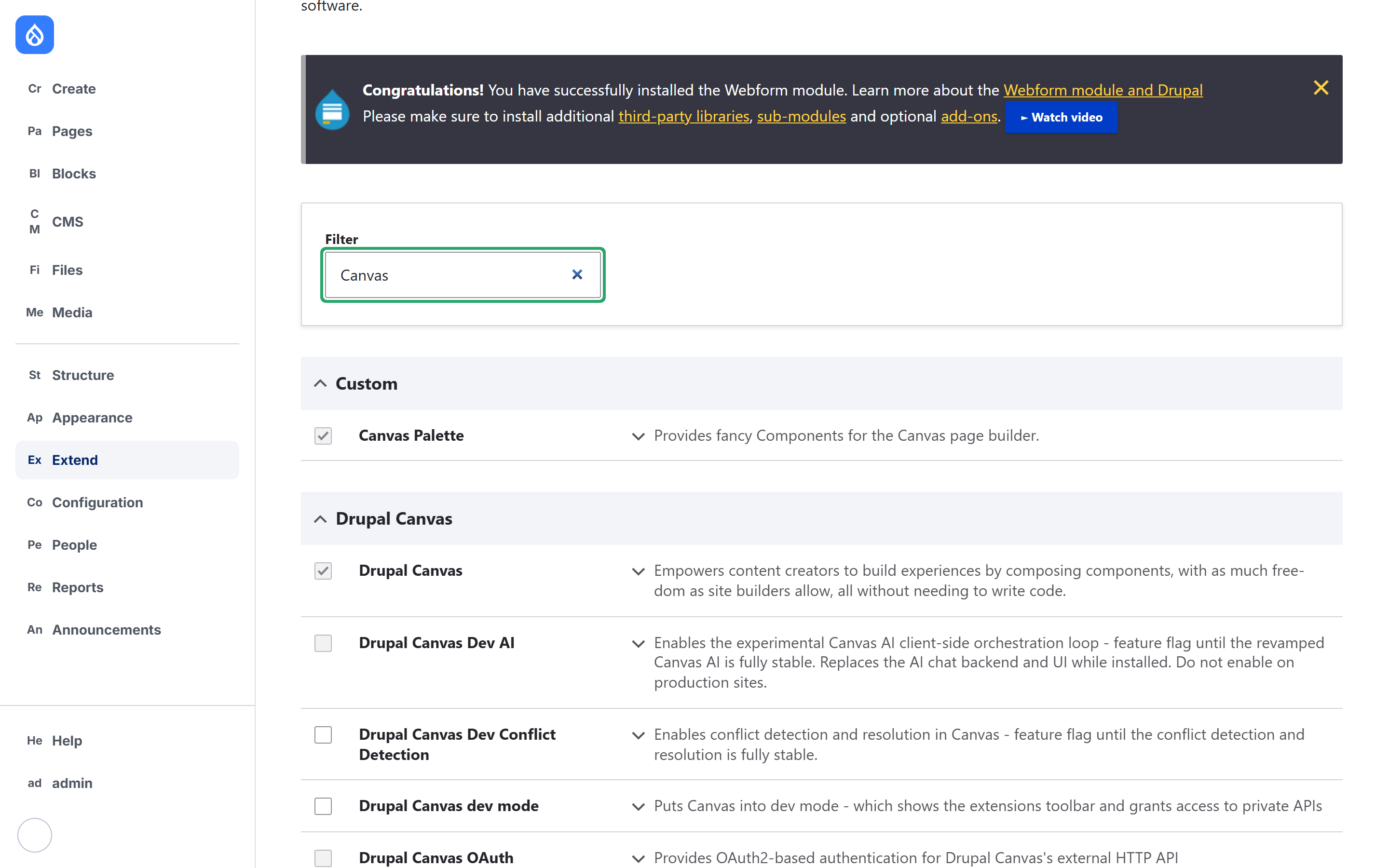
[success] O módulo webform foi instalado.Prefer the UI? Go to Extend (/admin/modules), type “Canvas” into the filter, tick Palette and Drupal Canvas, and press Install. Drupal will offer to enable the required dependencies for you.
Passo 3 — Reconstrua os caches
O Canvas deriva uma definição de componente por pasta e congela seu schema. Após a instalação, reconstrua os caches para que essas definições sejam geradas:
drush crdrush cr may not reach the running site. If new components don't appear, also clear caches through the browser at Configuration → Development → Performance → Clear all caches.Passo 4 — Abra o Canvas e encontre os componentes
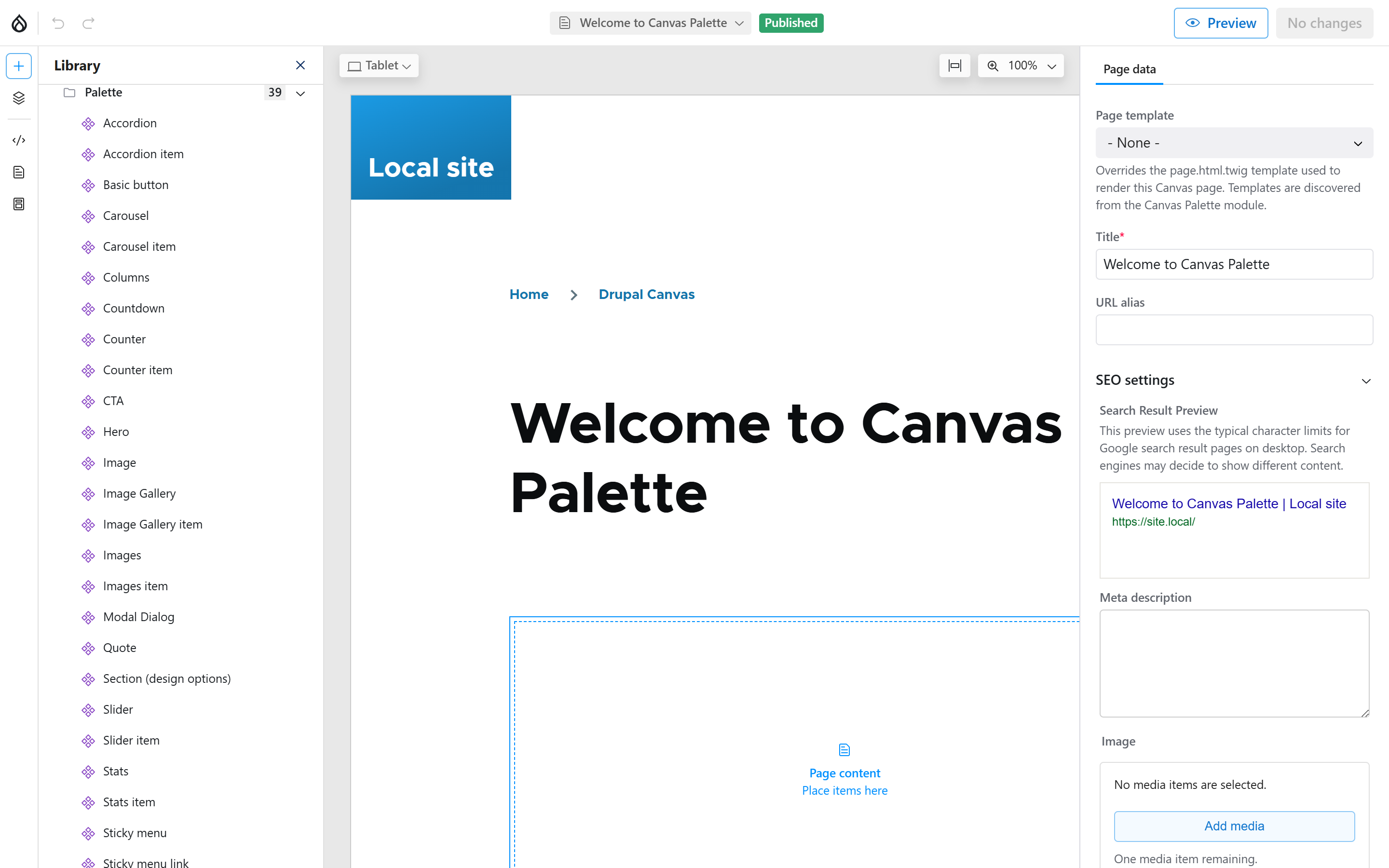
Open any Canvas page in the editor (create one under Pages, or edit an existing Canvas page). Click the + button to open the Library. Every Canvas Palette component is grouped under a single Palette category — 39 of them, from Accordion to Video Gallery:
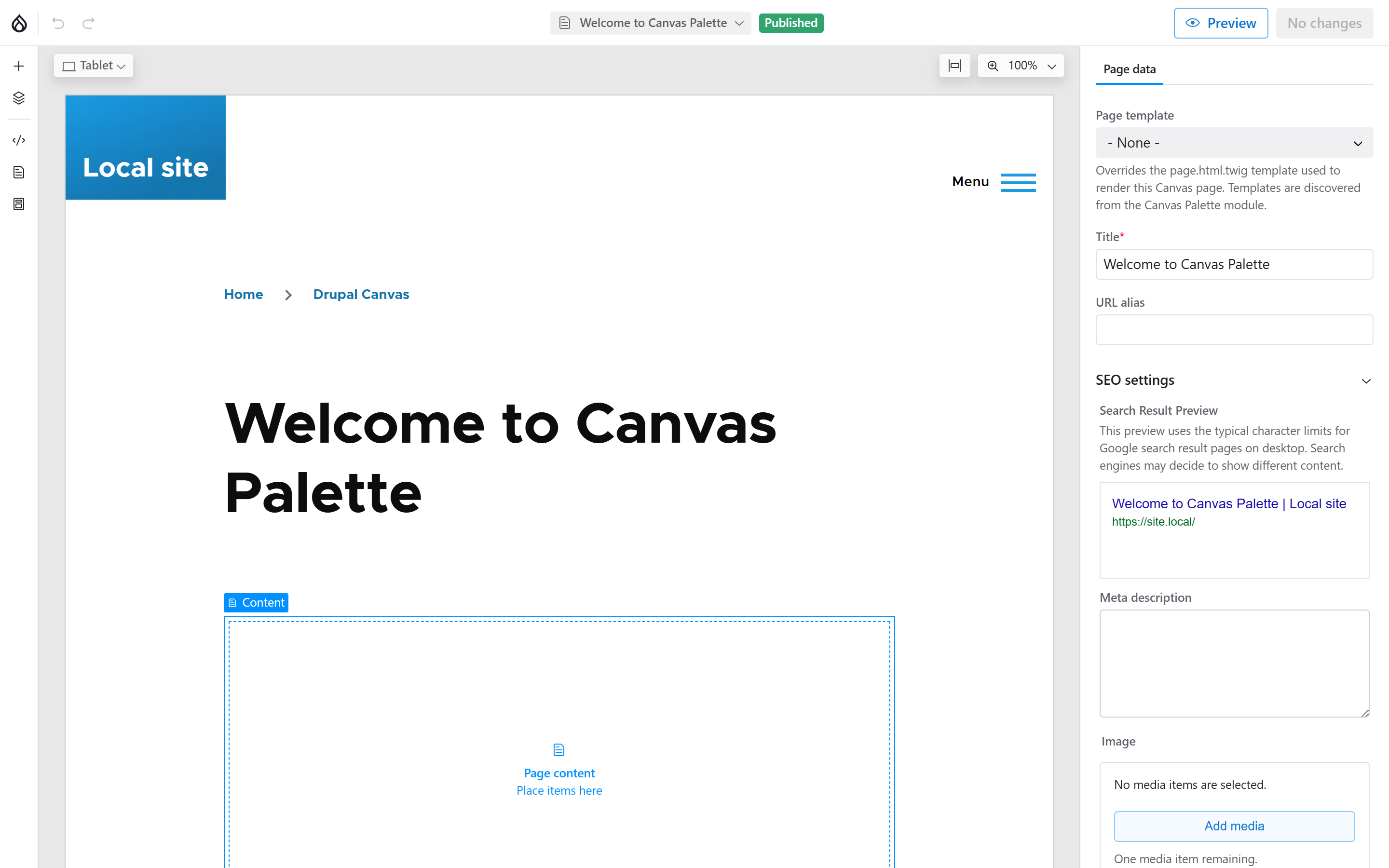
Solte um componente no canvas e configure suas props na barra lateral direita. Canvas Palette also registers whole-page options on the Canvas page itself — you'll see a Page template selector noting that “Templates are discovered from the Canvas Palette module”:
drush en, one cache rebuild — and the full Palette kit is live in the Canvas editor. There's no dedicated settings page; all configuration happens per component in the Canvas sidebar.