
Sincronizar páginas do Palette entre sites com o Palette Pro (Channel + Pull)
O canal do Palette Pro permite que um site leia as páginas do Canvas de outro site via HTTP. Um site fonte expõe suas páginas; um site destino o registra como remoto e puxa as páginas que deseja — com um status por página de Nova / Precisa de atualização / Sincronizada, para que você sempre saiba o que está desatualizado. Ele permite sincronizar páginas entre Staging e Produção.
Neste passo a passo, a fonte é o staging (stg.drupalbook.org) e o destino é a produção (drupalbook.org). Vamos sincronizar uma página que mostra as estruturas de layout do componente Row.
fonte · Channel
destino · Remote + Pull
A página que estamos sincronizando
Nossa página de staging empilha vários layouts Row — colunas iguais, um 1/3 + 2/3 deslocado, uma linha de quatro colunas, um multi-linha full + 2, e um arranjo com barra lateral — cada célula rotulada para que a estrutura seja óbvia.
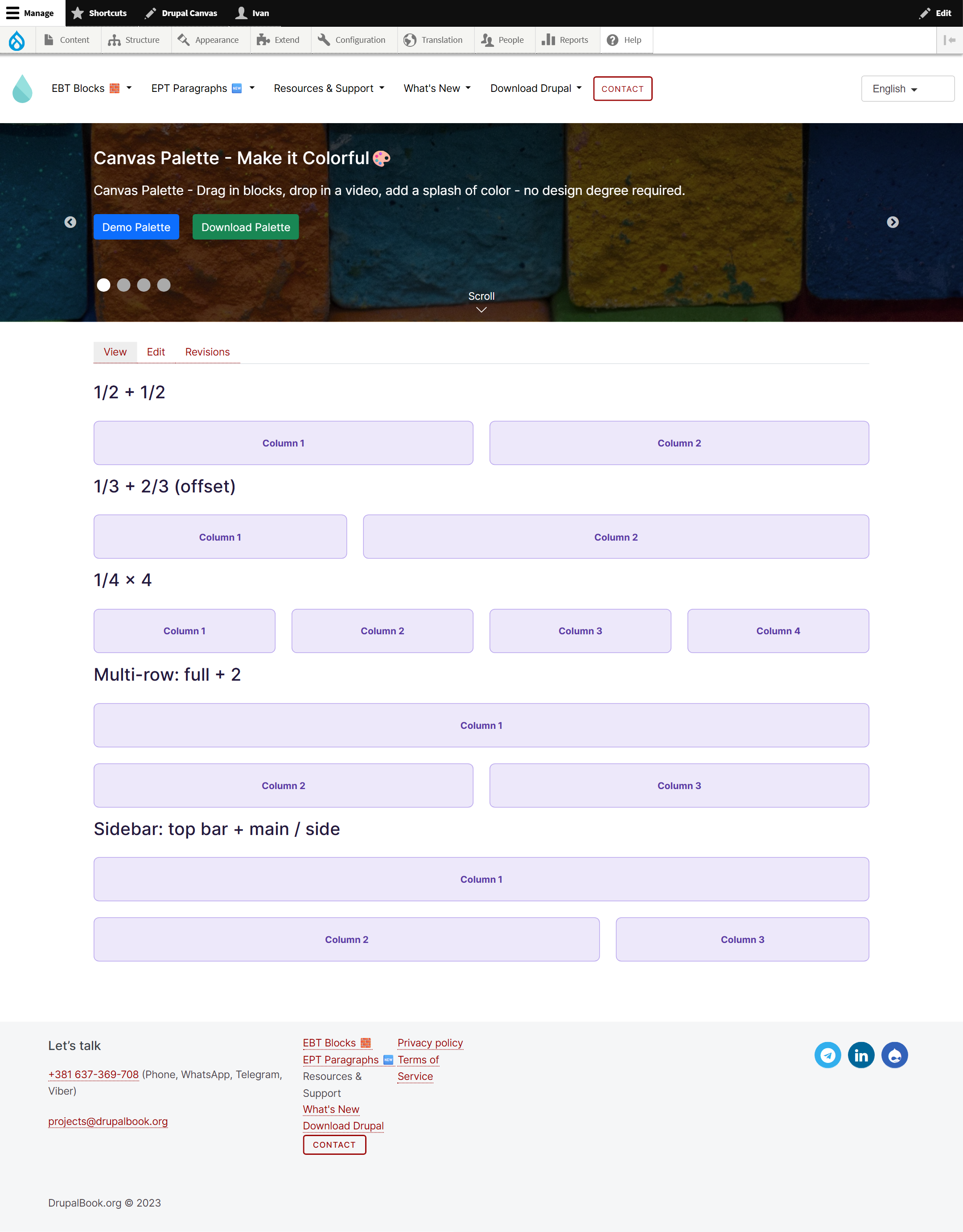
stg.drupalbook.org (a fonte).canvas, canvas_palette, palette_pro — e da mesma versão do provedor de componentes, para que a página seja renderizada de forma idêntica. O destino também deve conseguir alcançar a fonte via HTTP.Step 1 Expor o canal na fonte
On staging, go to Configuration → Web services → Palette Sync channel and choose how the channel is protected:
- No authentication — open; only for trusted networks / internal use.
- HTTP Basic Auth — a Drupal user on the source holding the “Access the Palette Pro channel” permission.
- Access token — a secret sent in the
X-Palette-Sync-Tokenheader (there's a “Generate” button).
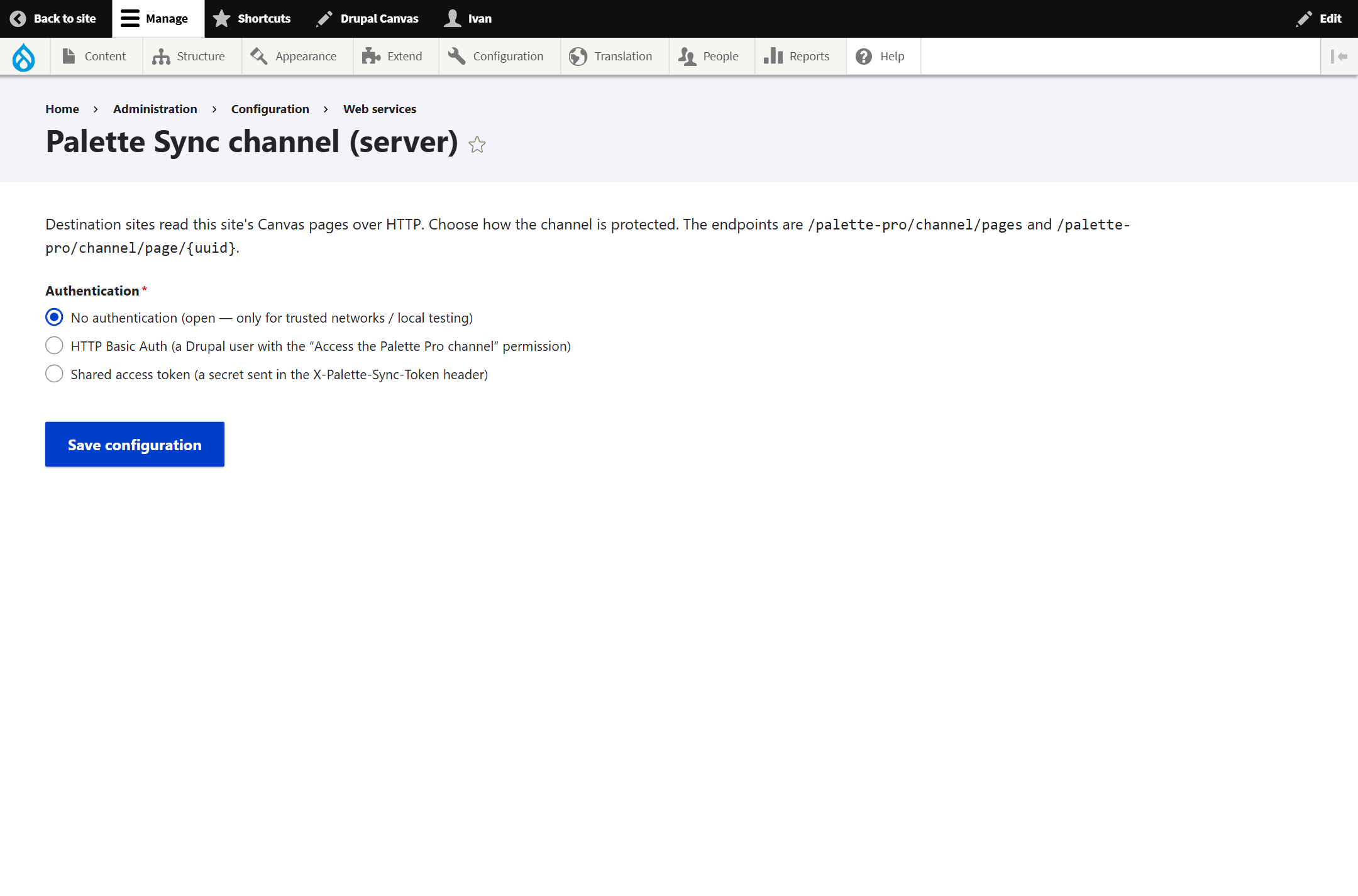
/palette-pro/channel/pages and /palette-pro/channel/page/{uuid}.Step 2 Adicionar o remoto no destino
On production, go to Configuration → Web services → Palette Sync remotes and Add sync remote:
- Label — e.g. “Staging”.
- Source site URL — the source's base URL,
https://stg.drupalbook.org(no channel path). - Authentication — match the source's setting (here, none).
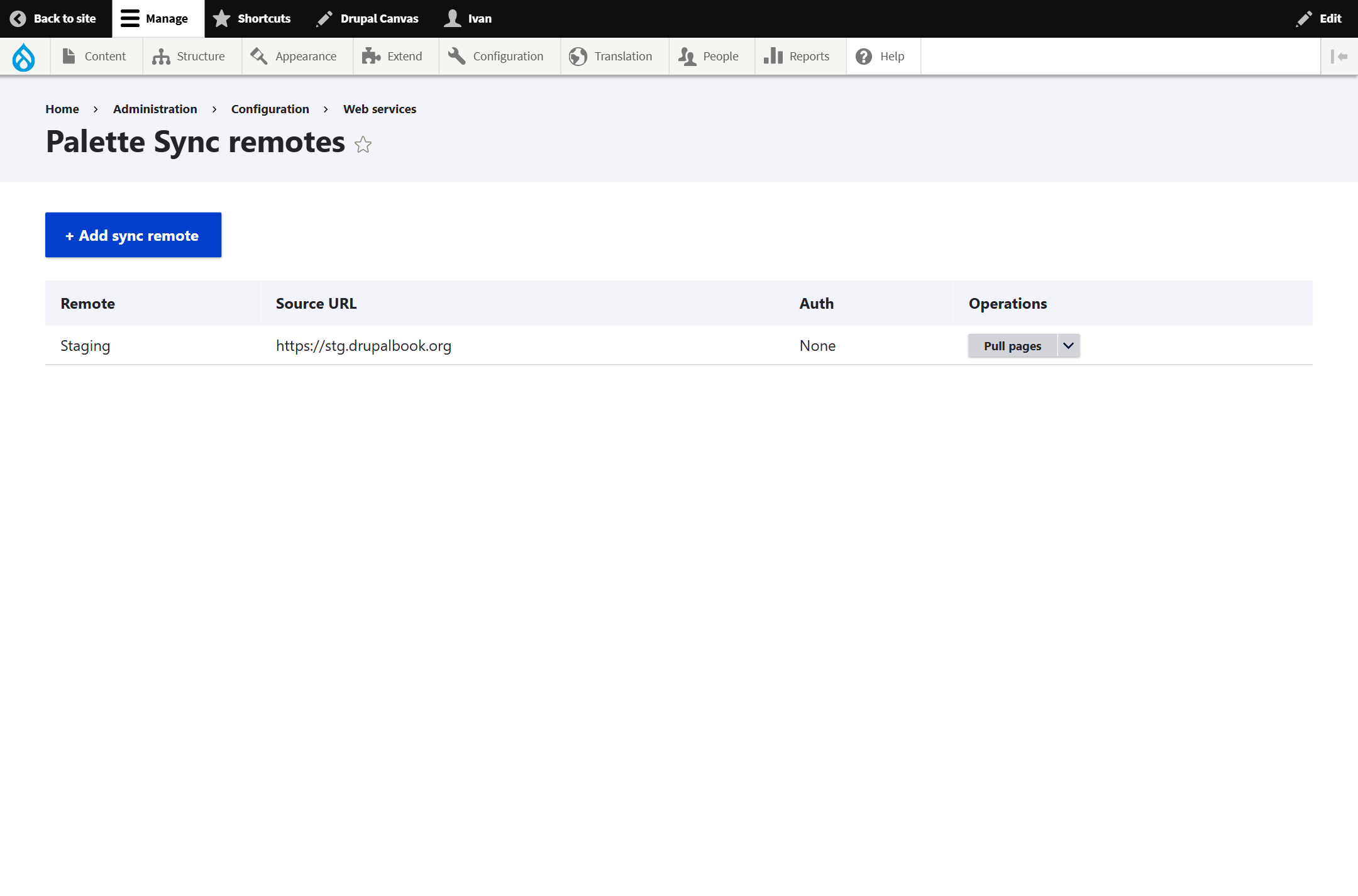
Step 3 Puxar a página
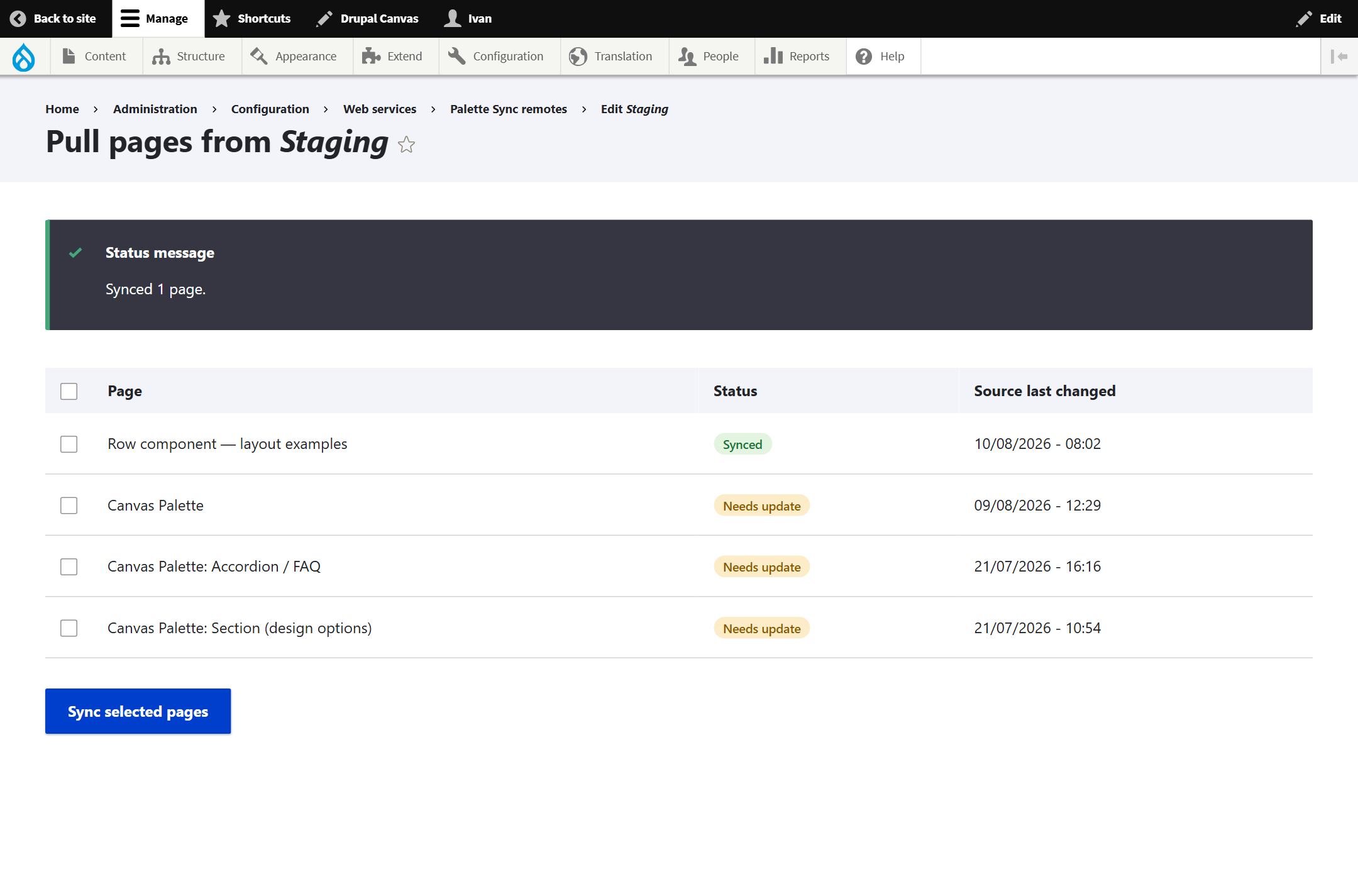
Use the remote's Pull pages operation. You get a paged list of the source's pages, each with a status badge:
| Badge | Meaning |
|---|---|
| New | No page with this UUID exists on the destination yet. |
| Needs update | A copy exists, but the source changed since you last synced it. |
| Synced | The destination copy is up to date with the source. |
Our Row page shows as New — it isn't on production yet. Tick it and press Sync selected pages.
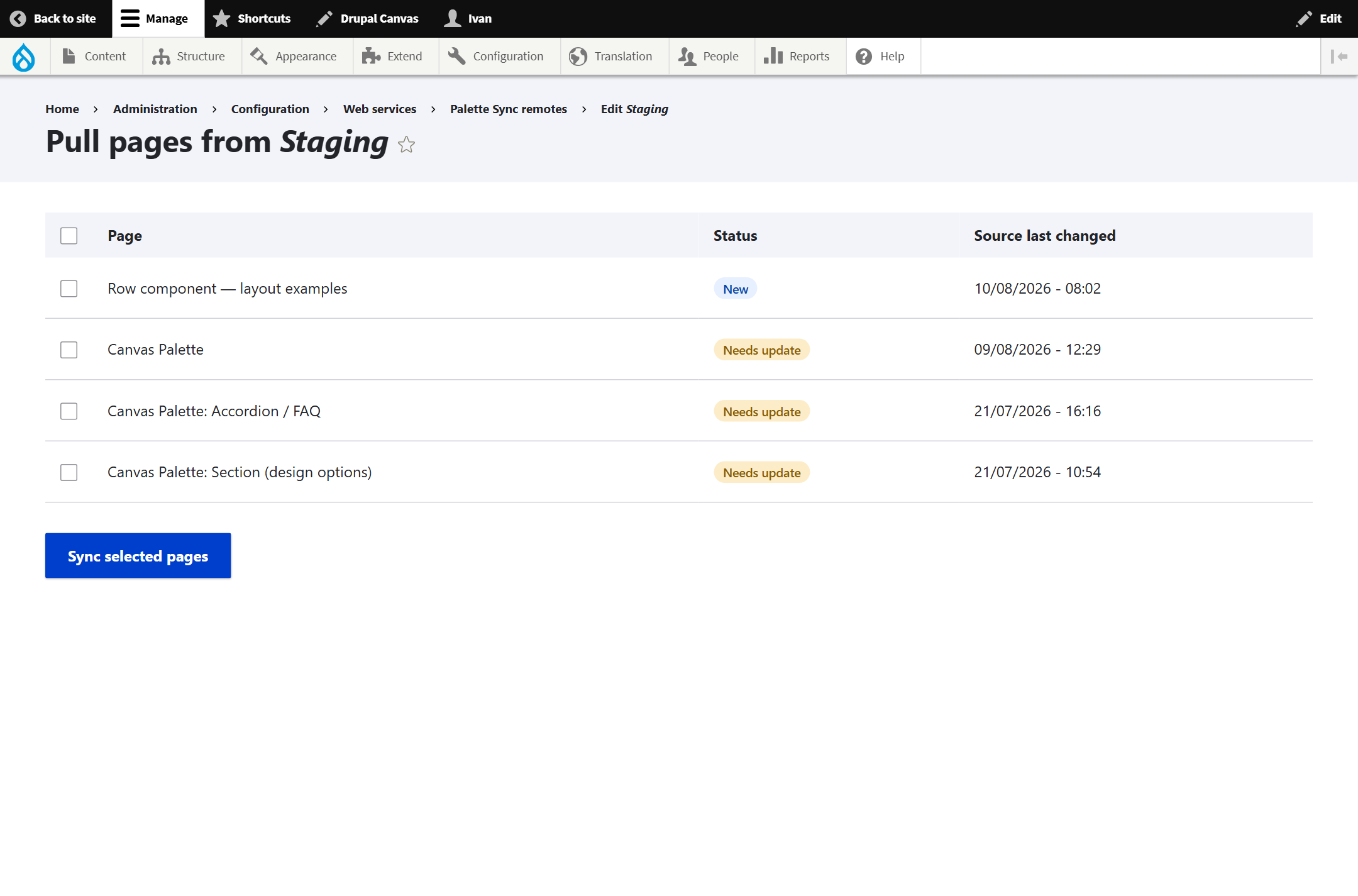
Palette Pro fetches the page's bundle over the channel and imports it — media, files and the pinned component versions included — matched by UUID. The page flips to Synced.
Step 4 Verificar na produção
Rebuild caches (drush cr) and open the page at its alias (/row-examples). Every Row structure renders on production exactly as it did on staging — the component tree, pinned versions and any media all carried across the channel.
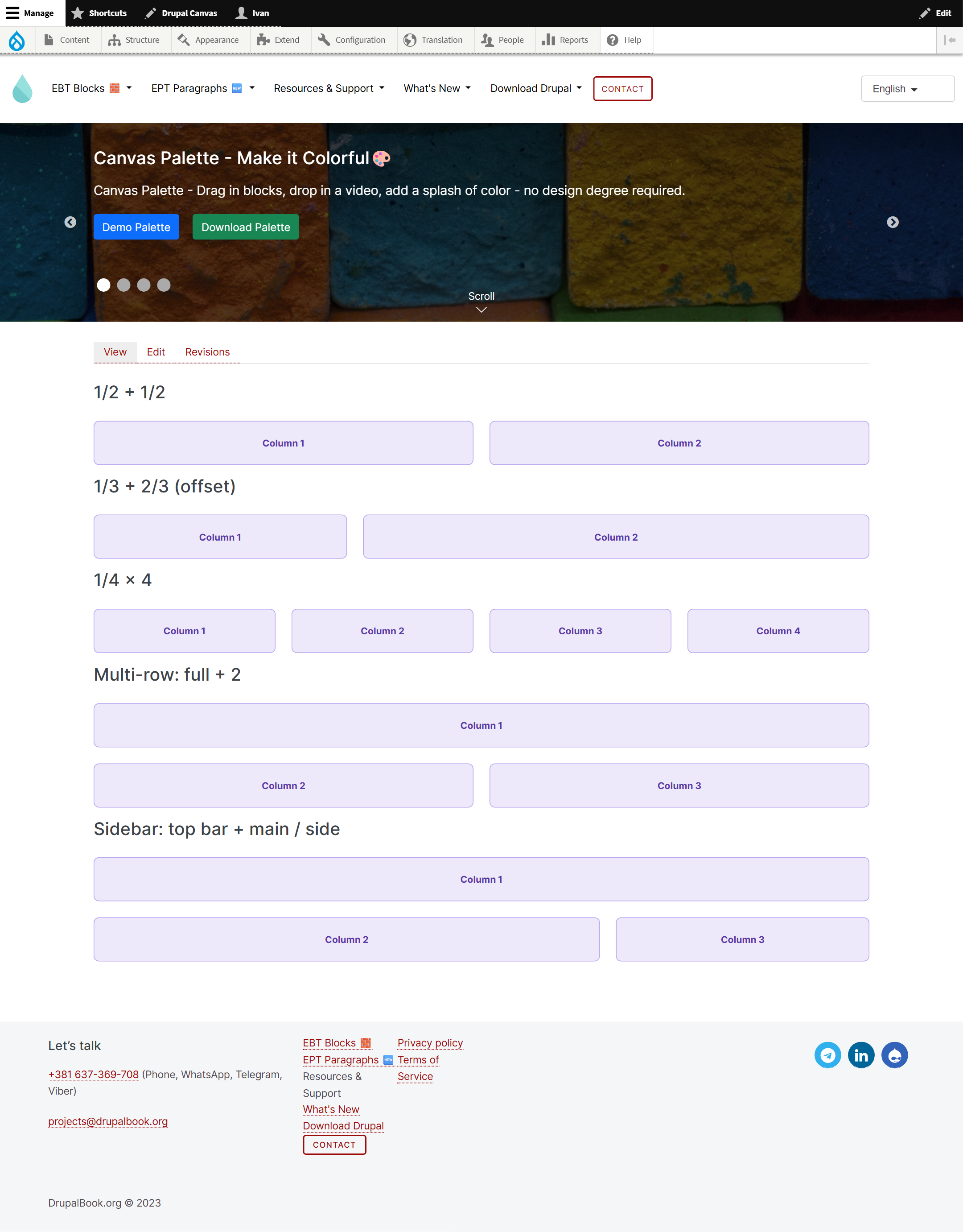
drupalbook.org (production) — identical to the source.Como funcionam o status e a ressincronização
The destination compares each source page's last changed time against the value it recorded the last time it synced that page. So:
- Edit the page on staging → on the next listing it shows Needs update on production.
- Pull it again → it updates the same page in place (matched by UUID, never duplicated) and returns to Synced.
Prefere a linha de comando? O mesmo pacote está disponível via Drush — exporte na fonte, importe no destino:
# no staging
drush palette-sync:export 5 --out=row.json
# na produção
drush palette-sync:import row.json
O canal simplesmente automatiza isso via HTTP, com a listagem de status por cima.
Notas e pegadinhas
- Mantenha as versões sincronizadas. Se a produção rodar uma versão diferente dos componentes em relação ao staging, a página ainda importa mas pode não ficar pixel-idêntica — alinhe as versões dos módulos.
- Idempotente por UUID. Puxar novamente atualiza no lugar; nunca cria duplicatas.
- Acessibilidade. O PHP do destino deve conseguir alcançar a URL do canal da fonte via HTTP(S); proteja um canal público com token ou Basic Auth.
- Múltiplas fontes. Um destino pode registrar vários remotos e puxar de cada um.
Capturas de tela feitas nos sites reais stg.drupalbook.org (fonte) e drupalbook.org (destino) durante uma sincronização real.