
Demo: EBT Sticky Menu
EBT Sticky Menu Drupal module overview
You can download EBT Sticky Menu from drupal.org:
https://www.drupal.org/project/ebt_sticky_menu
Or use composer:
composer require drupal/ebt_sticky_menuEBT Sticky Menu contains all EBT module features including DOM Box, background color / Image / Video, Edge to Edge settings:
https://drupalbook.org/ebt/demo
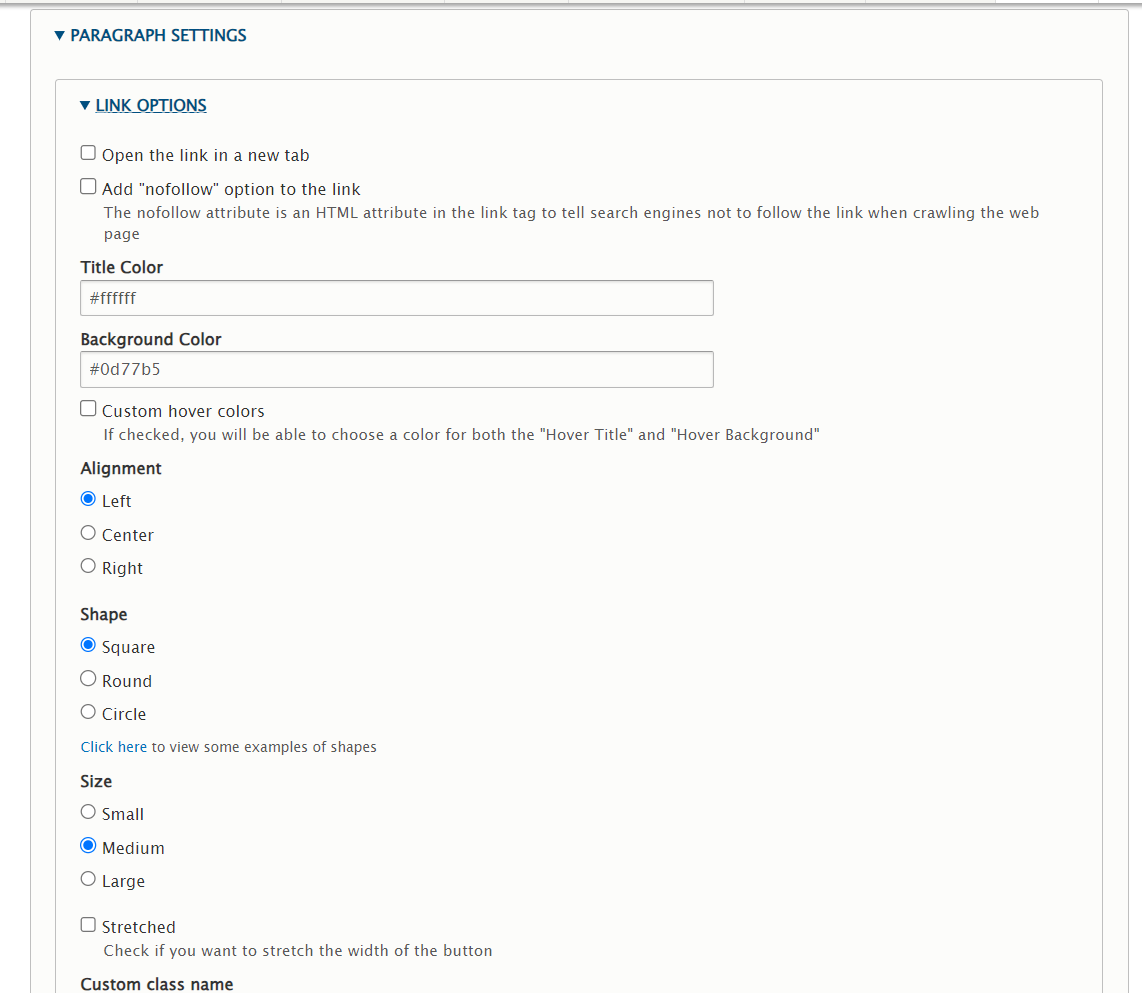
EBT Sticky has Link Options settings section:
Features
EBT Sticky Menu adds an in-page navigation bar as a custom block, so you can place it anywhere in Layout Builder without touching the theme.
- Sticky on scroll – the menu stays at the top of the viewport once you scroll past it.
- Scroll spy – the link of the section currently in view is highlighted automatically.
- Smooth scrolling – anchor links scroll smoothly and take the menu height into account.
- Dropdown menus – use the EBT Sticky Menu Links item to group links under a parent link.
- Mobile friendly – on small screens the menu collapses into a toggle that shows the active section name.
Installation
Install the module with Composer. The sticky-js library is downloaded automatically as a dependency:
composer require drupal/ebt_sticky_menu
drush en ebt_sticky_menu
After installation a new custom block type EBT Sticky Menu becomes available. Open the Layout tab of any page, click Add block, choose Create content block and select EBT Sticky Menu.
Configuration
The EBT Sticky Menu block has its own settings on the Block settings tab:
- Enable sticky functionality – make the menu stick to the top on scroll.
- Margin top – space between the top of the page and the sticky menu, useful with fixed headers.
- Sticky for – screen width breakpoint below which the menu is not sticky.
- Sticky class – CSS class added to the menu while it is stuck (
is-stickyby default). - Wrap – wrap the menu in a placeholder to avoid content jumps.
Every menu link also has its own options: open in a new tab, extra CSS classes (for example btn btn-primary), rel attribute and Scroll to ID.
Anchor links
To link a menu item to a section on the same page:
- Give the target element an ID. In an EBT block use the ID field in Design options, or add an
idattribute to a heading in the text, for example<h2 id="anchor-links">. - In the EBT Sticky Menu block, open the menu link settings and put the same value into Scroll to ID.
- Save the layout. The link now points to
#anchor-links, scrolls smoothly to the section and becomes active while the section is in view.
All sections on this page are built this way: each text block has a heading with its own ID and the sticky menu above links to them.