
Export/Import Palette pages from Local site to Production⚡
Palette lets you assemble a page visually, but moving that page to another site is not just a matter of copying text: a page references media, image files and the exact component versions it was built with. Palette Pro packages all of that into a single bundle so the page lands on production as a pixel-perfect copy.
In this walkthrough we build a demo page on the local site (drupalbook.local) that shows every Quote Slider style, then export it and import it on the production site (drupalbook.org).
The page we're moving
Our page stacks five Quote Sliders, one per item style — Persona, Company, Persona with small icon, With square image, and With frame and background image. Each slider holds three testimonials.

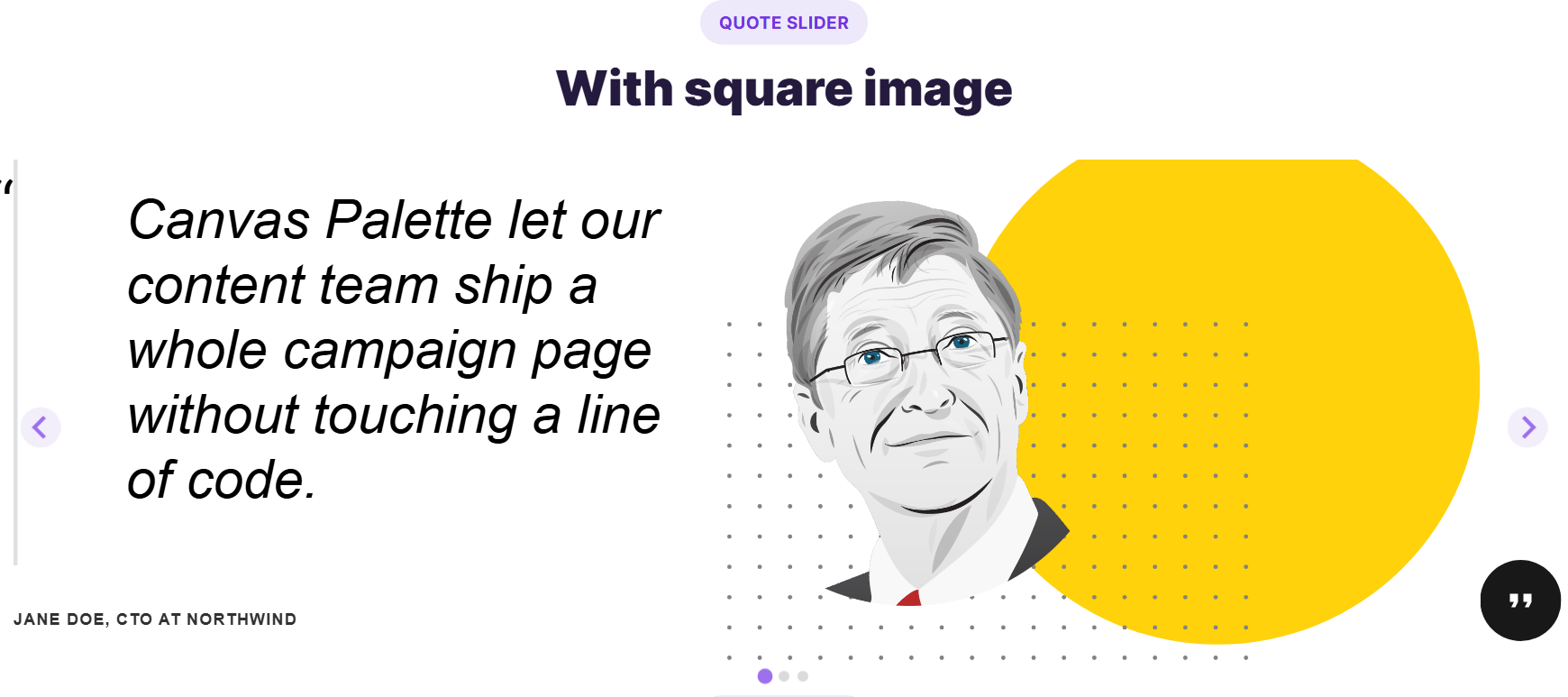
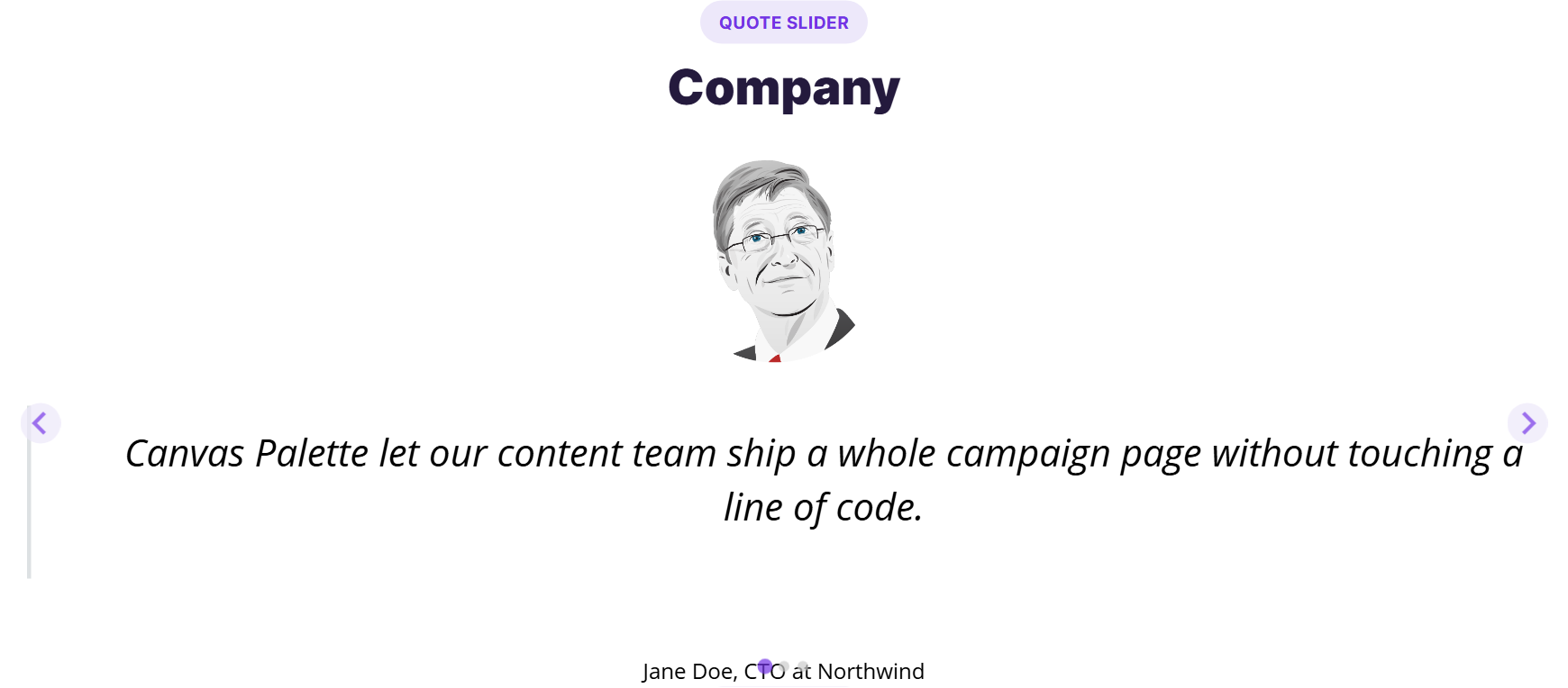

Before you start
Both sites must match Palette Pro carries the component schemas a page pins, but not the components' code. So the local and production sites need:
- The same modules enabled:
canvas,canvas_palette,palette_pro. - The same version of the component provider (
canvas_palette/ your custom components) so the page renders identically. - Core
mediaenabled (a dependency of Palette Pro).
Step 1 Export the page on your local site
There are two ways to produce the bundle. Both create the same .json file.
Option A — from the Canvas editor
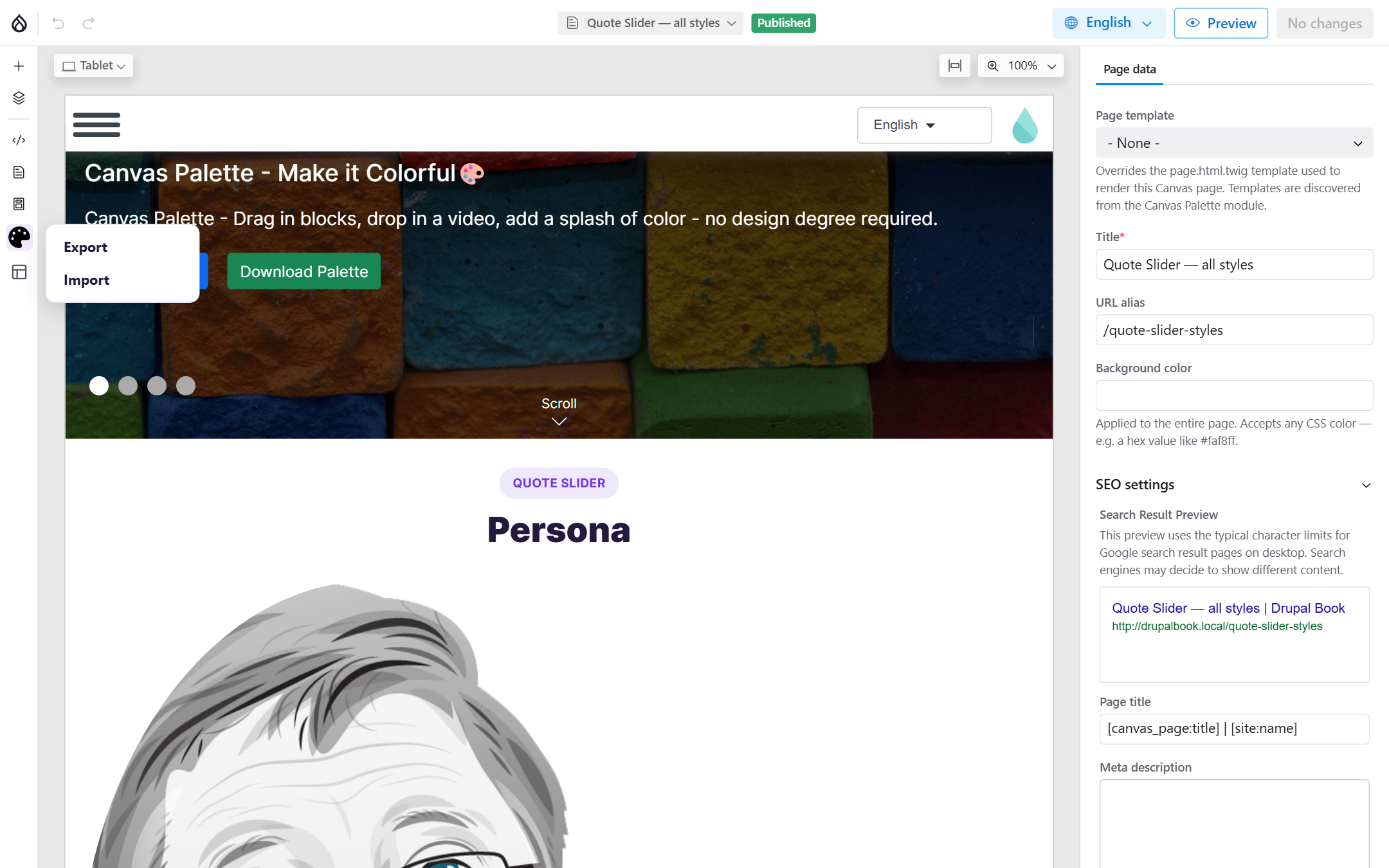
Open the page in the Canvas editor. In the left side menu, click the Palette button (the palette icon) and choose Export. Your browser downloads canvas-page-<id>.json — the complete bundle.
Option B — from the command line (Drush)
Handy for scripting or air-gapped moves. Run it from the site root; find the page ID in Content → Pages or the editor URL.
# On the LOCAL site (drupalbook.local)
drush palette-sync:export 5 --out=quote-slider.json
# [OK] Exported page 5 "Quote Slider — all styles": 20 components, 3 media, 3 files -> quote-slider.json
What's inside the bundle
Unlike the stock Canvas CLI, the Palette Pro bundle is self-contained. Everything is matched by UUID, so re-importing updates in place instead of duplicating.
| Part | What it carries |
|---|---|
| Page | Title, status, URL alias, and the component tree (media refs tokenised by UUID). |
| Component versions | The exact schema of every component version the page pins. |
| Media | Every referenced media entity. |
| Files | Every referenced file plus its raw bytes — no separate file copy needed. |
Step 2 Import the page on production
Copy quote-slider.json to the production server (or have it on your machine for the editor upload). Then import it on drupalbook.org.
Option A — from the Canvas editor
Open any page in the Canvas editor on production, click the Palette button and choose Import (see the menu above). Pick the .json file — Palette Pro recreates the files, media, component versions and the page, then opens the imported page in the editor.
Option B — from the command line (Drush)
# On PRODUCTION (drupalbook.org)
drush palette-sync:import quote-slider.json
# [OK] Imported page "Quote Slider — all styles" as canvas_page/12 (created): 3 new media, 3 new files.

# Re-running updates the same page in place (matched by UUID). Use --new to fork a fresh copy:
drush palette-sync:import quote-slider.json --new
Option C — pull it over the channel (no file to move)
Palette Pro can also connect production to your source site directly. On the source, open the channel settings and choose how it's protected (token or HTTP Basic Auth).
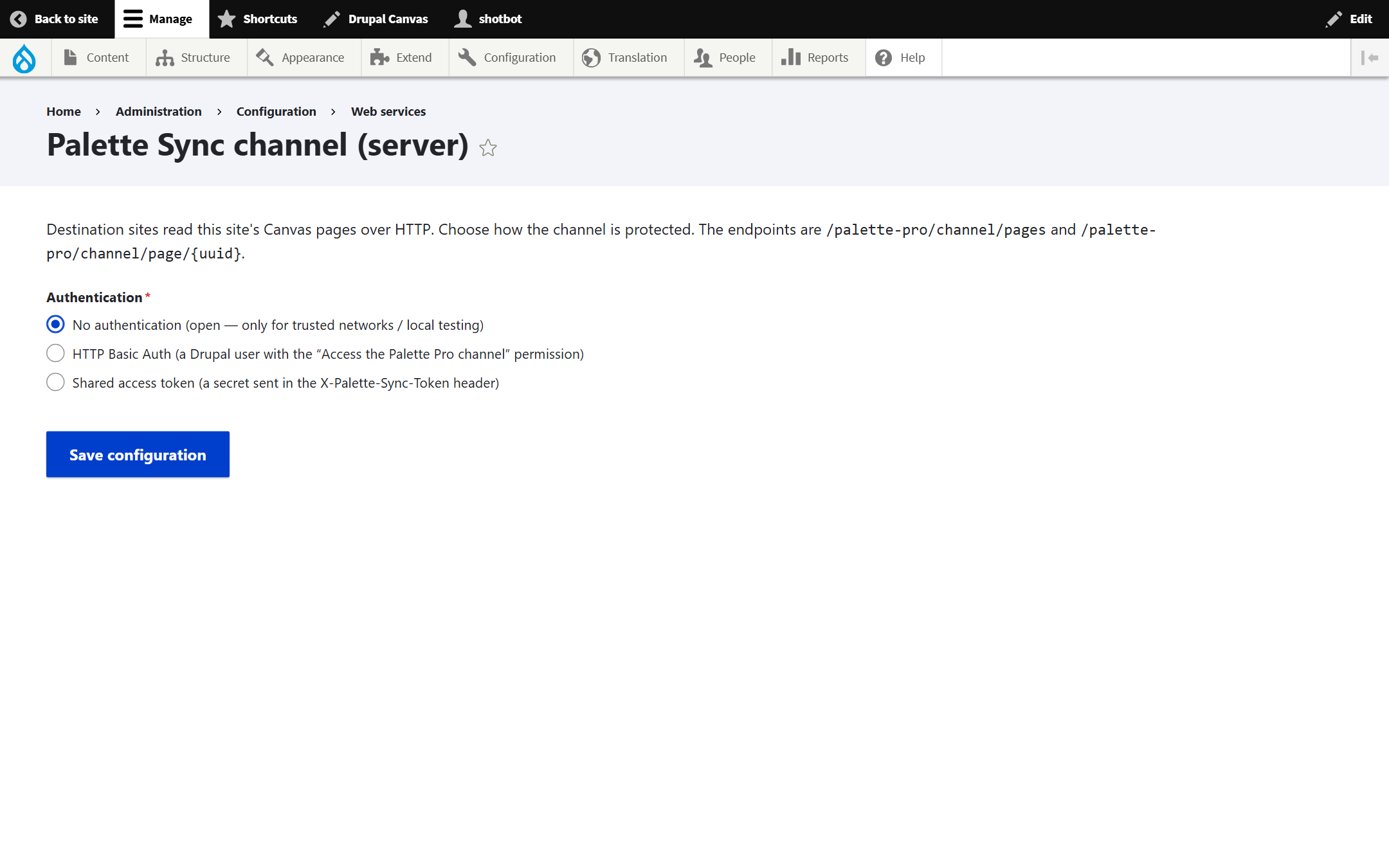
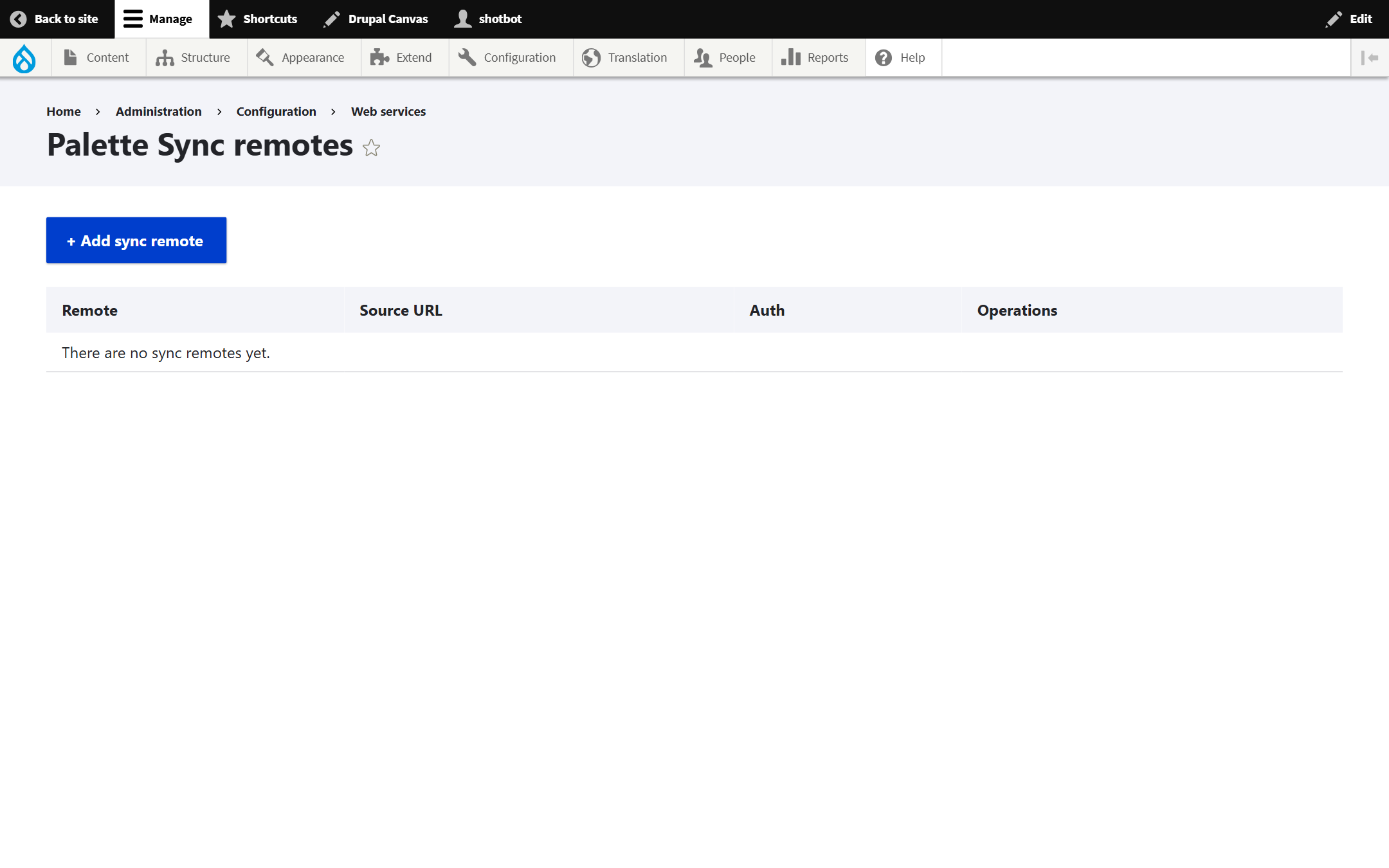
On the destination, add a remote that points at the source, then use Pull pages: you get a paged list of the source's pages with a New / Needs update / Synced badge each, and pull the ones you want.
Step 3 Verify on production
- Rebuild caches:
drush cr. - Visit the page at its alias (
/quote-slider-styles) and confirm every slider, image and style renders. - Open a Quote Slider and check the author images resolve — that proves the file → media → tree remap worked end to end.
Notes & gotchas
- Idempotent by UUID. Import the same file twice and the page, media and files are updated, never duplicated. Edit the page locally, re-export, re-import — production converges.
- Bundle format. The bundle is tagged
palette_pro:1. Both sites must run a matching Palette Pro to read it. - Missing components. If a component in the page isn't installed on production, the import logs a warning and that piece may not render — install the provider module and re-import.
Screenshots captured on the local site (drupalbook.local); the Canvas editor and Palette Sync UI are identical on production.