

The Views module allows not only to output data from the Drupal tables, but it also knows how to calculate this row and group the results. This feature is called aggregation.
By default, Drupal has a Dictionary of Taxonomy Tags. Let's create a block with the most popular tags and display at the end of each tag how many materials on the site with this tag. We get something like this list:
Drupal 9 (5)
Drupal 8 (3)
PHP (2)
To get started, you will need to create Articles and bind tags to them.
/node/add/article

In this article we will look at the last block of the Views Others preferences.
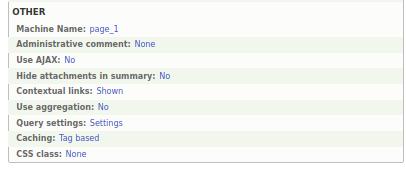
Machine name. The display ID is set as page_1, block_1 by default, and then 1 is added to the display name (page_2, page_3, etc.). It is advisable to rename the machine name if you have many displays in one view.

In 7th Drupal, there were many modules for integrating different jQuery slideshows with Drupal. Probably the most popular and convenient was Views Slideshow. There was one drawback in the 7th version of the Views Slideshow module, it was not responsive. Now in the 8th version this has been fixed, so let's make the slideshow exactly on the Views Slideshow.
First you need to download and install the Views Slideshow module itself, you will also need to enable the Views Slideshow Cycle submodule:

Very often, we need to display a block related to a specific user (for example, his article or announcement), display the author of the node in the block, on the page of that node.
But at the same time, each user has his own list of announcements, each node has its own author and these blocks will be correspondingly different for each node and user. For such blocks, we have contextual filters in the view.

The Views module allows you to not only set a filter and display materials, but also allows you to change these filters dynamically. Let's create a small real estate bulletin board using the Views module.
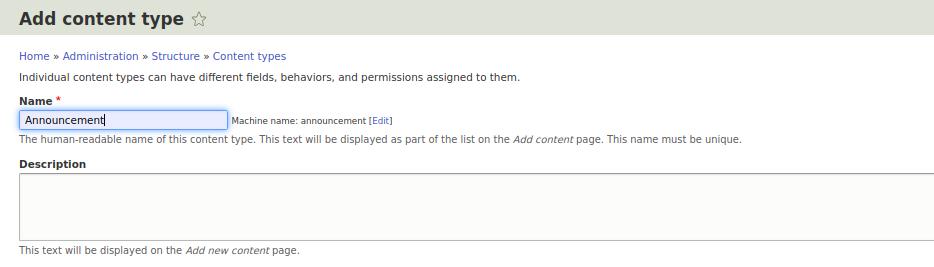
In order to display ads, we first need to create an announcement content type. To do this, go to Structure - Content types - Add Content type:

You just installed Drupal or you have a site with standard settings. You can add articles and tag them. Now, would you like to introduce visitors to a page containing articles of a specific category, how to do this? You decided to put this idea aside and instead display all articles sorted by title. How to do it?
The fact is that not all functionality can be turned on immediately after installing Drupal. As a rule, all additional functionality is taken out of Drupal in separate modules. But do not rush to install a bunch of modules, first try the Views module.

If you are interested in Drupal, then sooner or later you will reach the Views module. This module allows you to display almost everything that is in the Drupal: users, content, comments, taxonomy. Moreover, it allows you to display tables, blocks, sliders, calendars, lists, graphs and other types of data and designs. This module has been introduced into the Drupal core since version 8. So let's look at this module.

You just installed Drupal or you have a site with standard settings. You can add articles and tag them. Now, would you like to introduce visitors to a page containing articles of a specific category, how to do this? You decided to put this idea aside and instead display all articles sorted by title. How to do it?
The fact is that not all functionality can be turned on immediately after installing Drupal. As a rule, all additional functionality is taken out of Drupal in separate modules. But do not rush to install a bunch of modules, first try the Views module.

Drupal can work, not only with text pages, but also with images. To do this, you need to enable the Image module. The image module allows you to attach photos to nodes and display these photos with the size we need. Moreover, in different places, these sizes may vary. So, for example, in the teaser of the node, we can take a small photo, and in the full node it is already large.
In past lessons, we created the material type Employee. Let's open the Manage fields for the employee content type and add an image field.

Very often you need to make a landing page on a site whose template is significantly different from the rest of the site. Often this is a page of promotions, events, presentations.
For these purposes, there is a convenient Paragraphs builder:
https://www.drupal.org/project/paragraphs
Paragraphs allows you to display other types of paragraphs through a multiple field in a node: photo galleries, text with an image, sliders, videos, and more.