
Like any other CMS, Drupal has a front page and to set it up, let's go to the Configuration — Basic site settings:
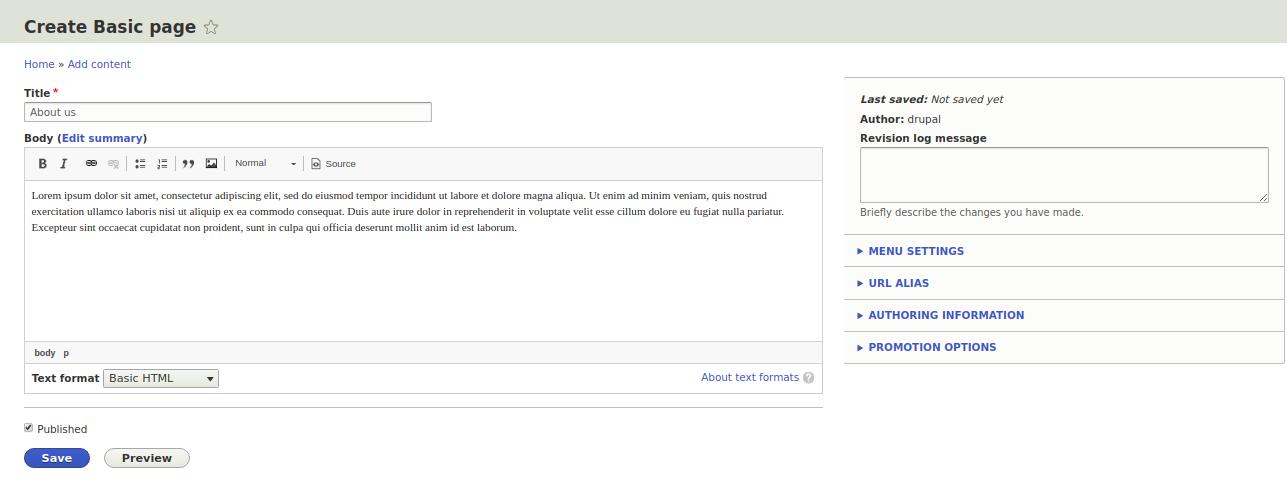
Here we will put our home page, by default it is /node, a list of recent nodes. But first you need to create some kind of node, let's create the About Us page and place it on the front page. Content - Add Content - Basic Page:
/node/add/page

Drupal admin panel provides extensive site management features. In the following articles, we will cover each item on the Configuration page:
/admin/config
If you worked with Drupal 6, Drupal 7, then this admin panel is already familiar to you, because most of the things have passed to the 8th version. And for those to whom Drupal is a new CMS, we will begin to consider everything in order.

Drupal, like many other CMS, allows you to combine links to pages in the menu. You can add new menus and links to them when creating new pages.
After installing the standard version of Drupal, we have 5 menus.
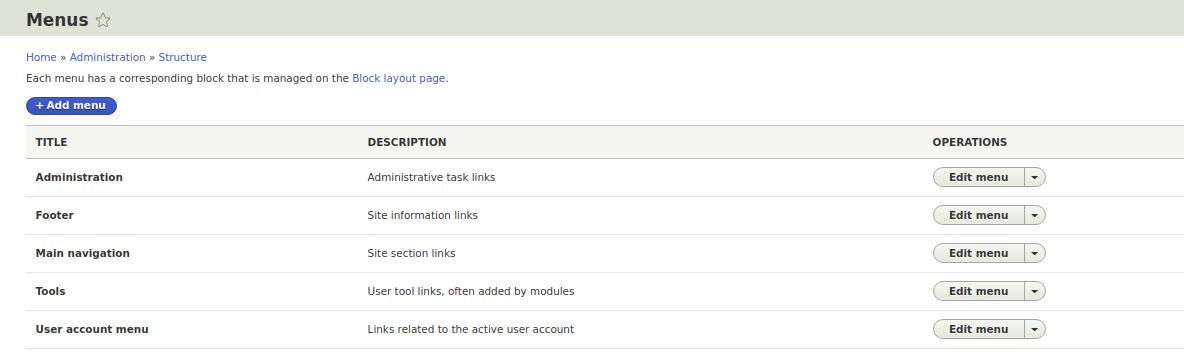
Main navigation - this is the previous menu from Drupal 7 main-menu (primary links). By default, there is a link to the home page.

Forums are not as popular as before, although they remain popular for torrent trackers and joint purchase sites, technical support. Here is such a simple but ready-made forum can be done on Drupal in 5 minutes
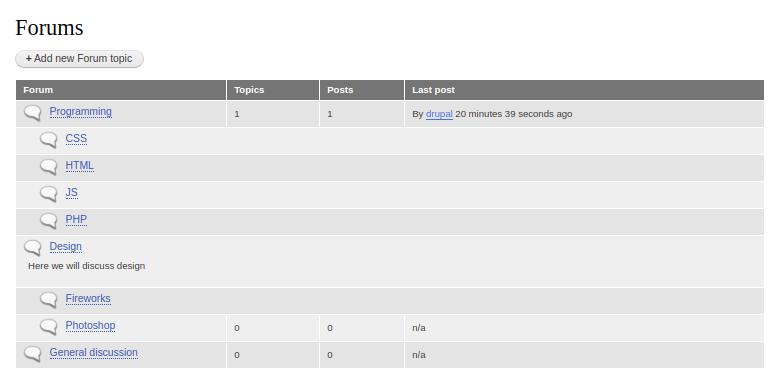
In order to add a forum, you need to enable the forum module:

Often on the site you need to display the image in a popup window, for this in the Drupal there is a very popular Colorbox module:
https://www.drupal.org/project/colorbox
composer require drupal/colorbox

drush en colorbox
After installation we need to go to the module folder, find the README.txt file and find a link to the colorbox library
/web/modules/contrib/colorbox

Views module is one of the most popular modules. It allows you to display any data you want News, Articles, Comments, Taxonomy terms in the form of blocks, pages, RSS feeds, CSV files, XML files, and in many other formats. And finally, in Drupal 8 Views in the core! Now it does not need to be installed, Views is in the standard installation.
Let's include on Views and start displaying the data.
Create the content type News.

Drupal is able to work, not only with text pages, but also with images. To do this, you need to enable the Image module. The image module allows you to attach photos to the nodes and display these photos in the size we need. And in different places, these sizes may vary. So for example in the teaser of the node we can take a small photo, and in the full node it is already a big one.
In the past lessons we created the content type Employee. Let's open up the control of the content type fields Employee and add an image field.

In Drupal there are wonderful modules Fields, Field UI, they allow us to attach different fields to objects (nodes, comments, users, taxonomy terms), which are created by the Entity module.With the help of Entity + Fields, you can implement any connection between real-life objects on the site. For example, you have a firm, the firm has various departments, and there are employees in the departments.Create a taxonomy department covabulary, write all departments of a company there, create an Content type Employee and attach a field to it.

In Drupal 8, as in previous versions, you can add additional blocks in the regions.Usually in the Drupal themes there are regions: Header, first and second sidebar, content and footer of the site. Let's go to the Menu - Structure — Block Lyout. In the Bartik theme we have the following regions:

In the last lesson we made a blog from Drupal, but that blog didn’t have enough of a tags for articles and tags. Let's add a vocabulary, using taxonomy. Enable the Taxonomy module for this if it is not already enabled.
Taxonomy in Drupal is a method of classification (rubricator, categorization) of nodes with the help of taxonomy tags (terms, categories). Let's create a vocabulary tags, with which we will classify our articles Menu - Structure — Taxonomy.